
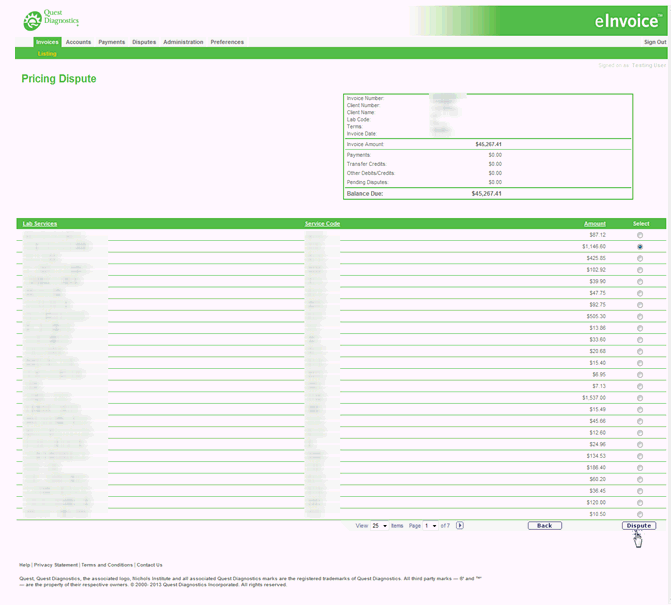
Click the Pricing
Dispute button to dispute the price being charged for a specific
test(s).
Result: The Pricing Dispute screen displays.
Note: The amount field represents the total being charged for
each time a service was performed on the selected invoice.
From the Select column, click the service you wish to dispute.
Click Back
to return to the Invoice Details screen.
OR
Click Dispute.
Result: The Dispute Line Item screen displays each patient/specimen
who had the test performed.
Note: The Requested Dispute
Amount is the amount the client was charged and the Requested
Dispute Reason should always be set to Pricing.
In the Price Should be text box, enter the expected test price.
Click Recalculating.
Result: The Requested Dispute Amount box changes to the dollar
amount that you are requesting be deducted from each line item. The
Total Requested Dispute Amount summarizes the total that should be
charged for each time the test was ordered.
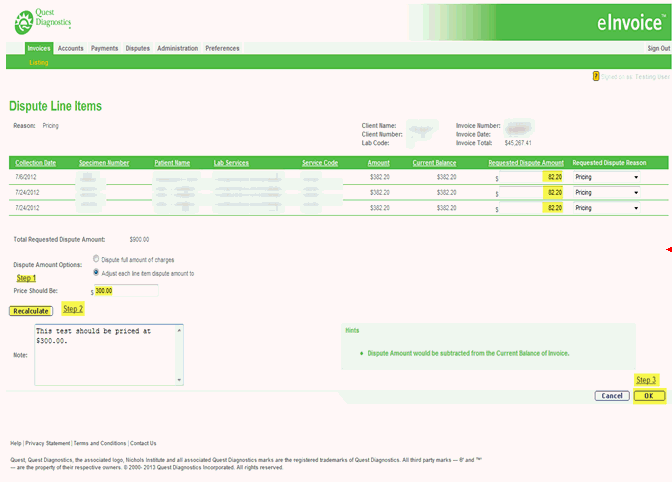
Enter an optional note providing detailed information on the pricing change request.
Click Cancel
to return to the Pricing Dispute screen.
OR
Click OK.

Click Edit
to make any changes.
OR
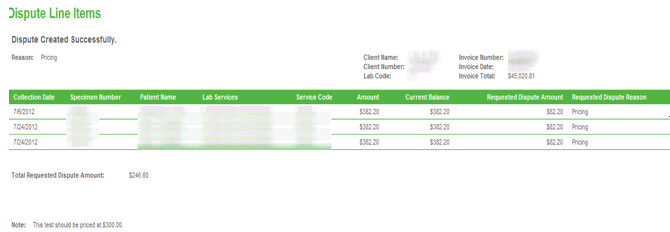
Click Verify.
Result: The message Dispute
Created Successfully displays.
Click the Invoice
Number link to return to the Invoice detail.
Result: An asterisk displays under the Test
column and the disputed amount displays under the Disputes
column.
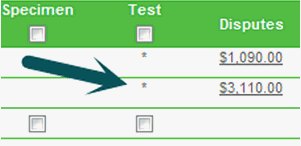
Optionally, you can click
the dollar amount in the Disputes
column to see the Line Item Transactions screen with the dispute details.
