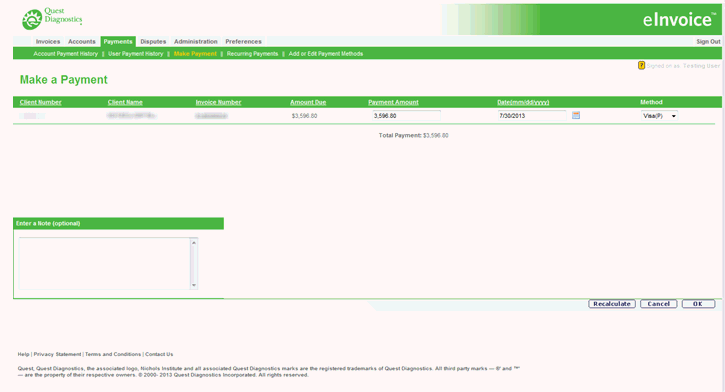
This screen allows users to process payments for shared payment methods. The screen will display all open invoices available for payment. If you intend to pay one invoice, click the Invoice number link to go to invoice details, then click the pay button. If you intend to pay some but not all of your invoices, click the Invoices tab to select your target invoices, then click the Pay button.
Note: If there are
no established payment methods, the following message displays: Payment Method absent for the invoice(s)
that were selected. Please
add a payment method under Add or Edit Payment Methods.
Go to Add or Edit Payment Methods to set up payment methods first.
Click on the column heading to sort in ascending or descending order.
To access, click the Accounts tab, then Payments, then Make Payment.
Enter the amount in the Payment Amount text box.
Enter the Payment Date or click the calendar icon to designate a date to process payment.
Select the name of the Payment Method from the drop-down box.
Type a Note, if applicable.
Click the Recalculate button for a subtotal if the payment amount differs from the Amount Due, or if paying multiple invoices.
Click Cancel
to return to the previous screen or to reset the Payment Amount.
OR
Click OK.
Result: The Verify a Payment screen displays.
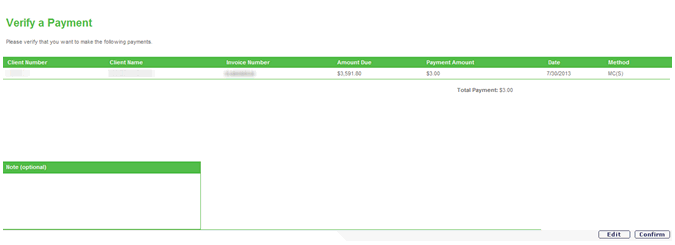
Click Edit
to return to the Make a Payment screen.
OR
Click Confirm.
Result: The Confirm a Payment screen displays with the message
The following payment has been scheduled.